The
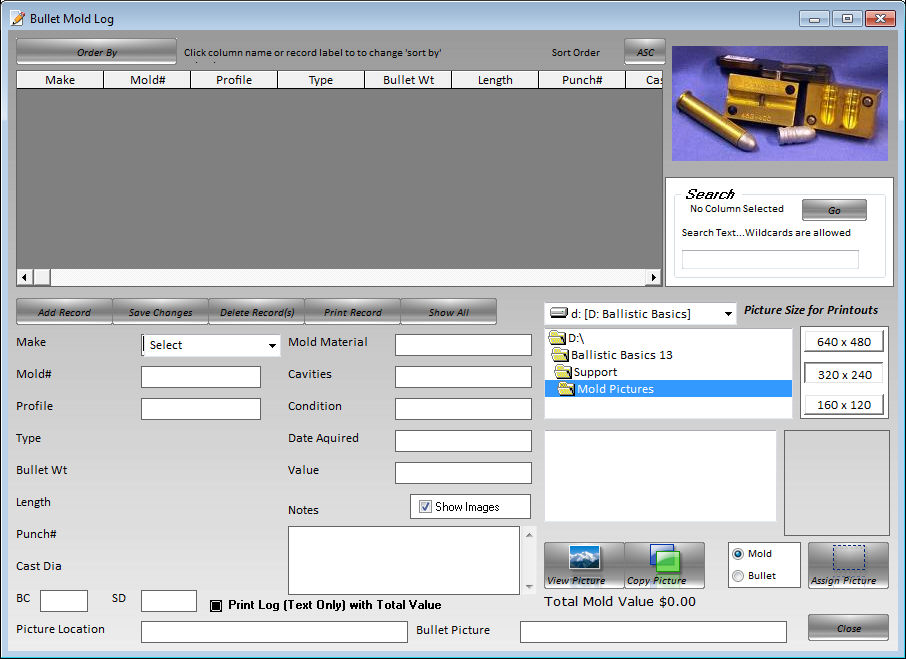
Bullet Mold Log offers a convenient way to keep track of your bullet
molds including BC and SD.
To
Use the Log
Enter
the mold information in the appropriate text entry boxes and click
[Add Record].
To
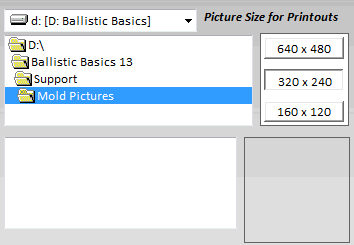
add a picture to the record Use the drive and folder explorer to navigate
to your
picture
folder. To backup these picture you should copy them to the Mold Pictures
folder
in the Ballistic Basics installation folder This can be done by the
Log by clicking
[Copy
Picture].
To
view thumbnails of the selected picture for the current record check
the [Show
images]
Check Box.
To
view the selected picture click [View Picture].
If
you need to make changes select the record you want to edit make an
changes in the
text
box and click [Save Changes].
To
remove a record click [Delete Record].
To
print a record click [Print Record].
To
arrange the records to fit your needs click the column header, for
instance Mold#.
Then
click the sort order button [ASC} or [DESC].
To
Search your records, click the column to search then enter your search
term in the
input
box and click [Go]
Printing:
You may also select to print the current
record with the associated picture by unchecking the Print Log
(Text Only) check box.
The Print Button text will switch between
'Print Log' and 'Print Record' to inform you of the current selected
print option.
Both of these printouts will go to the Program Printing Window.
To select a size for the image printout for
a record click one of the selection buttons.
Values are in standard pixels (W X H)