Re
loader's Log


Re
loader's Log
|
|
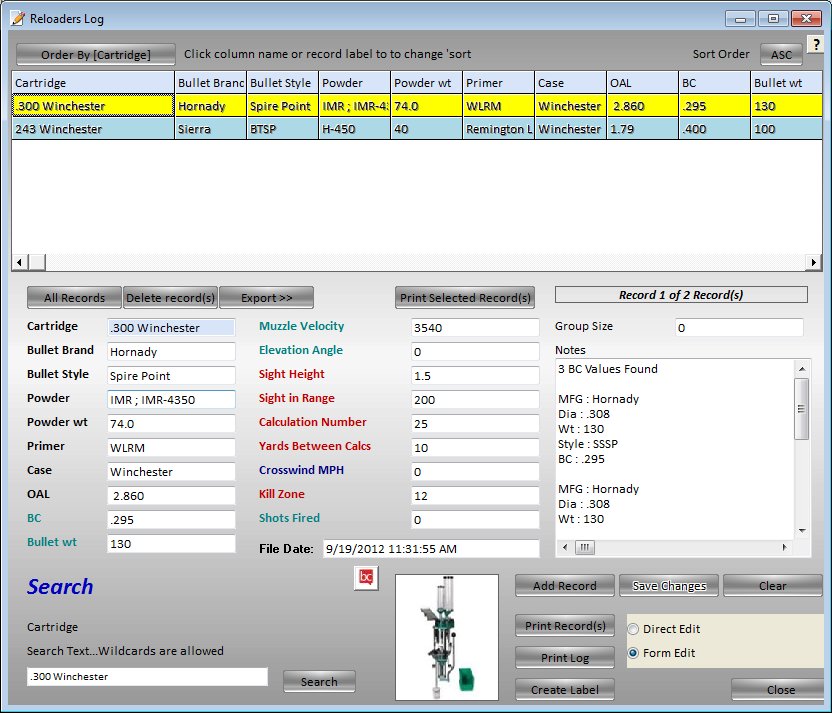
Window Area Descriptions:
There are 3 areas in the window
The upper area is the data grid that displays all the records in the log.
The middle area is the display/input area. Because the Log contains more fields than can be displayed in the grid the data is displayed in the text boxes when you click a row in the data grid. The second purpose is to allow you to add data to the Log.
The lower area is for searching and printing.
The Re loader's Log stores your data when you save in the main window or when you click Add Record. To add records to the log right from the Re loader's Log clear any text from the text boxes, type your load data into the corresponding text boxes and click Add Record Button.
To add a load from scratch click the Clear Button and all the input boxes will be cleared.
After you have typed in your data simply click the Add Record Button.
To make changes to a record click the input box with the data you would like to change when finished click the Save Changes Button.
You may also create a label for printing from one of your records in your Re loader's Log by selecting the record by clicking on it, then click the Create Label Button. The Box Label window will open and the corresponding data will have been placed in the text boxes.
You may search for particular loads using the Search Button. Wild cards such as *Win* can be used to find any records that contain the letters 'Win' in them. You can search by any field you desire by clicking in a field's record in the database window. This will automatically change the field to search in. To show all records after you have completed a search just click the All Records button or click one of the field names of the database.
You may sort the records in alphabetically descending order (Z to A) order or ascending order (A to Z) by simply clicking on the field name at the top of the database window.
To activate the changes click the Order By Button in the upper left hand of the window.
Selecting Multiple Records.
To select multiple records depress and hold the Ctrl key down and click on the desired records. To select a range of records click the first record, then depress and hold the Shift key and click the last record you want.
To delete a record from the log click on the record you want to delete in the re loader's log database and press the Delete Record Button.